


PDF Reader - Annotate Docs
3.39.00 Reviews
App Specs
- Version
- 1.0
- Updated On
- License
- Free
- Downloads
- 50,000+
- Developer
- The Galaxy Info
- Categories
- Personalization
- Platform
- Android
Screenshots
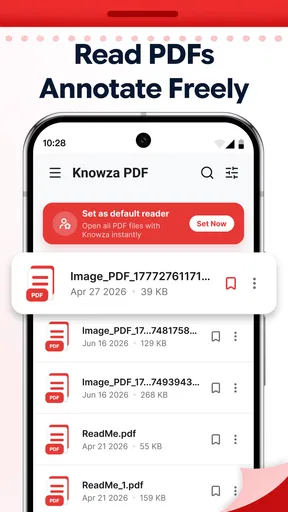
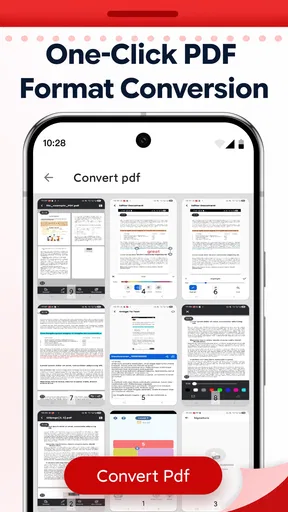
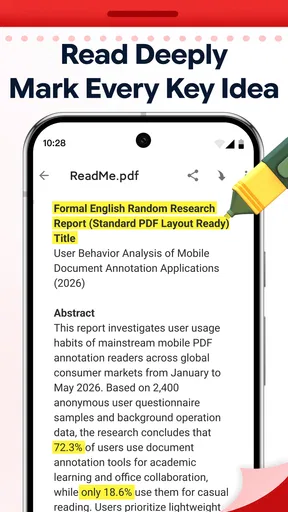
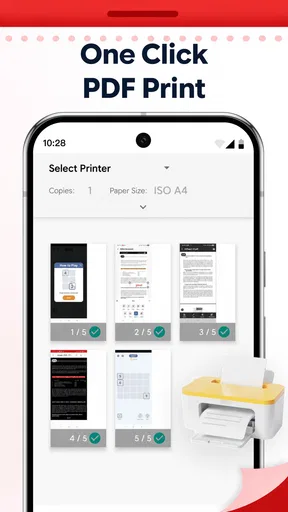
 Analysis by AppCompare
I reach for a PDF reader when I need to get through a form, mark up a handout, or find a document buried among downloads—not when I want another complicated workspace to manage. PDF Reader - Annotate Docs is aimed at that practical sort of use: it is a free Android personalization app for reading, annotating, editing, and organizing PDFs. In my view, the appeal is straightforward: keep common document tasks together without turning them into a full office suite.
A focused reader in its first release
The app is developed by The Galaxy Info, and its current version is 1.0. That makes this an early release rather than a mature product with a long feature history. The release date is June 18, 2026, so there is not yet a visible sequence of version changes to judge. I would treat the current experience as a starting point: useful for testing the basic PDF workflow, but not proof that every task or edge case is polished.
For someone who mostly opens documents, reads them, adds notes, and keeps files in order, that narrow focus can be a plus. A dedicated reader is often less distracting than opening a large office app just to check a two-page notice. The trade-off is that a simple reader may not suit people who need advanced document production, detailed collaboration, or a dependable process for sensitive business paperwork.
The app has an average rating of 3.3 from 51 ratings, with 9 written reviews, and has been installed over 50,000 times. I see that as a modest but useful signal: people have tried it, while the rating suggests the experience is not universally smooth. It is free and rated for Everyone, which makes it easy to try for ordinary personal reading. Neither fact, by itself, tells me how well it handles a particular file or workflow.
What the everyday workflow should look like
The most sensible way to use a tool like this is to give each task a clear purpose. Open a PDF to read it, add annotations only where they help, make edits when a correction is genuinely needed, and organize the result so it is easy to find later. That sounds basic, but separating “read,” “mark up,” and “change the document” is a practical habit: annotations can record your thoughts without confusing them with the original wording.
A realistic example is reviewing a school permission form or a community notice on the way home. I would open the file, scan the details, mark the date or a question that needs follow-up, then save the document where I can locate it again. The useful part is not simply having a pen tool; it is being able to move from reading to a small, actionable note without switching between unrelated apps.
For longer documents, I would use annotations as navigation aids rather than decorate every page. Mark only the clauses, definitions, or instructions that matter, and add a short note when a highlight alone would be ambiguous later. This keeps a marked-up copy readable on a phone screen and makes it easier to return to the important parts after a few days. It is a workflow tip, not a claim that the app includes a particular advanced annotation system.
Worth Reading Before You Choose

EA SPORTS FC Mobile 26 Is a Bigger Football Game, but It Takes Time

Flipboard Shows What News Apps Must Do Beyond the Feed

Switching to Android Auto Means Rethinking Your Driving Routine

Google Calendar Makes a Crowded Week Easier to Manage

Ludo King Makes the Most of the Minutes Between Plans

Baby Panda World Brings Quick Play to Modern Phones, but Its Game Library Feels Busy
Where it fits among familiar alternatives
Compared with a browser’s built-in PDF viewer, a dedicated reader is appealing when you want to do more than glance at a file. A browser is often enough for a quick reference, but it can feel awkward when you want to keep notes or manage documents as a continuing collection. A specialized reader has a clearer reason to stay installed if annotation and organization are part of your routine.
At the other end, full office suites and professional PDF editors make more sense when you regularly revise complex documents, work with forms at scale, or need a broader set of tools. Those apps can be heavier than necessary for someone who mainly reads and makes occasional notes. I would start with this reader if the task is modest, then move to a more established editor if you find yourself repeatedly needing capabilities beyond basic reading and document handling.
Because version 1.0 is the only current release, I would avoid treating the app as a settled alternative to long-standing PDF tools for important work. The confirmed change so far is simply that it has reached its initial release; there is no verified update history here that demonstrates new features or refinements. For existing users, that means the sensible approach is to judge it by the files and tasks they actually use, rather than assume a roadmap or a future improvement.
Small habits that make PDF work less frustrating
Before editing anything important, keep an untouched copy of the original. This is good practice with any PDF tool, but it matters especially when a reader also offers editing: a quick change can become hard to reverse if you overwrite the only copy. I would name the working version clearly, such as by adding “notes” to the filename, so the annotated document is not mistaken for the source.
For documents you need to revisit, use a consistent folder or naming pattern outside the moment of reading. For instance, keep bills, travel documents, and reference material in separate groups rather than relying on memory or a long recent-files list. That is a practical way to get value from document management without assuming the app provides a specific filing feature or automatic sorting option.
There is also a useful distinction between annotating and editing. If I am commenting on a draft for my own reference, visible marks may be enough. If I am changing information that another person will treat as final, I would check the saved file carefully and reopen it before sharing. A reader’s ability to modify a PDF is not the same as a guarantee that every formatting detail will remain exactly as intended.
Limits worth weighing before relying on it
The first limitation is uncertainty around polish. A 3.3 average is not a reason to dismiss the app, but it is a reason to try it with low-stakes files before making it part of a work routine. Test a document you can replace, see whether your notes remain clear after saving, and confirm that the file is still easy to locate. That small trial is more informative than trusting a short description.
The second is the gap between a general-purpose reader and a specialist editor. If you routinely need precise layout changes, extensive form handling, or a tightly controlled review process, I would choose a tool built around those demands. The same goes for shared team workflows: a personal reading app may be convenient on one device, but convenience alone does not establish that it supports the review controls a team needs.
There is also a device threshold to consider: the app requires Android 8.0 or later. That is worth checking before downloading, particularly if you keep an older phone as a backup. Its Everyone age rating and free price make it approachable for casual use, but they do not remove the need to verify that it suits your device and your documents.
Who I would recommend it to
I would suggest trying PDF Reader - Annotate Docs if you want a free, uncomplicated place to read PDFs and make occasional notes on an Android device. It is a reasonable candidate for students checking course handouts, people reviewing household paperwork, or anyone who wants a dedicated app instead of opening every file in a browser. The strongest case is a light, personal workflow where being able to read and mark a document matters more than advanced editing.
I would skip it as my main tool if a PDF is central to a regulated job, a high-volume office process, or a collaborative approval chain. In those situations, I would favor a mature editor with features and safeguards that match the work, then use a basic reader only for quick viewing. I would also avoid relying on any untested app for the sole copy of an important document.
Choosing files and checking your work
A useful first test is a document with a clear purpose and a replaceable original, rather than a large archive or a file you cannot afford to lose. Try a short handout, read it from beginning to end, and add only the marks you would genuinely want to see again. Then close the document and return to it later. That simple routine helps you judge whether the app suits your habits: a tool can be easy to open yet still be inconvenient if you cannot quickly pick up where you left off.
For paperwork that includes personal details, I would also think about where the PDF is stored before using any reader. Keep a copy in a location you already trust, and avoid treating an app as a backup service simply because it can manage documents. If you are handling a form with account or identity information, check the saved document before sharing it and send only the copy intended for the recipient. These are sensible precautions for any local document workflow, not a claim about this app’s storage or privacy features.
Another practical trade-off is screen size. On a phone, a reader is handy for checking a deadline or reviewing a few highlighted lines while away from a desk. Dense pages, tables, and small print are less comfortable to inspect on a narrow display. For those, I would use the phone to locate the relevant section and a larger screen to verify details before making consequential changes. That division of labor keeps the app useful without asking a mobile interface to do a job that is naturally easier on a tablet or computer.
Questions I would settle during a trial
If you are wondering whether it can replace your current PDF tool, I would answer that by separating occasional reading from dependable editing. For casual files, try opening, marking, saving, and reopening one document. If that sequence feels clear and the result looks right, it may be enough for your routine. If you need repeatable form filling, careful layout work, or a record of who changed what, I would choose a specialist application instead.
It is also worth asking whether you need a dedicated reader at all. If you only open a PDF once in a while and never annotate it, your browser or another app already on your device may be simpler. The case for installing a separate reader becomes stronger when you regularly return to documents, want to mark them for later, or prefer to keep PDF tasks apart from general browsing. That is a personal convenience decision, not a reason to install another app by default.
Finally, consider what “organize” means in your own routine. If you need a small number of documents to be easy to locate, consistent filenames and folders may be enough alongside a reader. If you expect automatic sorting, shared libraries, or a searchable archive, test for those needs before making this your central document hub. A clear description of intended use can prevent a common disappointment: expecting a lightweight reading tool to behave like a full document-management system.
What I would watch as it develops
Since this is version 1.0, the next meaningful evidence will be whether later releases improve the parts users notice during ordinary work: dependable saving, clear handling of edits and annotations, and smooth organization of documents. Those are expectations to watch, not features I can claim are already present. If the app evolves, I would judge that progress by whether it makes a real task easier rather than by a longer feature list.
My overall view is cautiously positive. PDF Reader - Annotate Docs has a clear everyday purpose and costs nothing to try, but its early version and middling average rating call for a little restraint. I would install it for casual reading and simple markup, test it with a replaceable file, and keep a more established editor available for anything where formatting, collaboration, or reliability is critical.
Pros
- Opens common PDF files quickly for everyday reading.
- Annotation tools make it easy to mark up documents.
- Search helps locate specific words or phrases in a PDF.
- Reading controls let you adjust the page display for comfort.
- Useful for reviewing and organizing documents on the go.
Cons
- Some advanced features may require a paid upgrade.
- Ads can interrupt the experience in the free version.
- Large PDFs may take longer to open or navigate.
- Small screens can make detailed annotations awkward.
- Annotation options may be limited compared with desktop PDF editors.
FAQs for PDF Reader - Annotate Docs
What can I do with PDF Reader - Annotate Docs?
PDF Reader - Annotate Docs is designed for opening and reading PDF files, with tools for adding notes and markings to documents. Depending on the version available on your device, annotation options may include highlighting text, drawing, or adding comments. It can be useful for reviewing study materials, forms, and work documents, but check the app listing for the exact features included in the current release.
Can I edit the text or images inside a PDF?
Annotation and editing are not always the same thing. An app described as a PDF reader and annotator typically lets you mark up a document without changing its original text or embedded images. If you need to rewrite paragraphs, replace images, or rearrange pages, confirm that those functions are explicitly supported in the app listing before downloading; advanced editing may require a separate tool or paid upgrade.
Does PDF Reader - Annotate Docs work offline?
PDF readers commonly let you open files already stored on your device without an internet connection, which is handy for reading on the go. However, features such as cloud storage, online file import, account syncing, or sharing may need internet access. Offline availability can also depend on where your documents are stored, so test access to important files before relying on the app while traveling.
Is PDF Reader - Annotate Docs free, and are there in-app purchases?
The download may be free, but that does not necessarily mean every feature is available at no cost. Some PDF apps restrict advanced tools, display advertisements, or offer subscriptions and one-time purchases. Review the app store page for pricing, in-app purchase details, and trial terms before installing, and check whether the annotation tools you need are included in the free version.
Are my PDFs and annotations private and secure?
Privacy depends on the app’s permissions, storage practices, and any connected services. Before opening sensitive documents, read the developer’s privacy information and check whether files are processed locally or uploaded for features such as syncing or conversion. Use your device’s security settings, avoid sharing confidential files through unfamiliar services, and confirm that annotations are saved before closing a document.


